.png)
 4 days ago
15
4 days ago
15
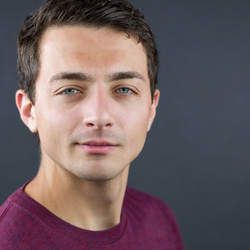
Portrait retouching in Lightroom often stalls when you get stuck doing the same careful selections again and again. This video puts the spotlight on a faster path using Lightroom Classic’s built-in AI masking, with results that still look like a human made the calls.
Coming to you from Gareth Evans with Park Cameras, this practical video walks through a full portrait edit in Adobe Lightroom Classic using AI-powered masks instead of slow, hand-drawn work. Evans starts with a real file shot on the Fujifilm GFX100RF, and he makes a point that will catch you off guard: it’s a JPEG, not a raw file. That constraint changes how hard you can push color and tone, so the workflow leans on targeted adjustments rather than heavy global moves. The early focus is on Lightroom’s Adaptive Portrait presets, which build multiple masks in one click and apply sensible starting edits to each area. You get a clear view of what Lightroom chooses to touch, and what you should delete when it guesses wrong, like a teeth mask on a closed-mouth portrait.
The most useful part is how the masks stack and how quickly you can dial them back when the effect gets too strong. You see separate masks for face skin, eyes, hair, eyebrows, and lips, then additional presets layered on top to refine specific areas. Instead of accepting the preset “as is,” Evans reduces the intensity where it starts to look artificial, especially on hair texture. That small move is the difference between “edited” and “overcooked,” and it is easy to miss when you are chasing contrast and pop. You also get a look at when Adaptive Subject presets help and when they push too far, plus how to pull the amount slider back to keep the edit under control.
After the preset pass, the video shifts into selective work that still feels fast, because the selection step is mostly automated. Evans uses Select People to create a mask for body skin, then softens texture and clarity so the skin reads smoother without turning into plastic. From there, the edit becomes more about shaping light than “fixing” features: gradients come in from different sides, then get intersected with background or subject so the changes land only where you want. One gradient darkens part of the background for separation, another lifts a brighter side and even adds a touch of negative dehaze to keep the light looking diffused. The key is that you are not repainting the subject by hand, you are steering the scene with controlled zones, and Lightroom is doing the tedious edge work.
There are also a few small global tweaks near the end, but they are treated like seasoning, not the main course. Because the file is a JPEG, Evans avoids wild color swings and instead makes restrained HSL moves, nudging orange hues for skin tone and keeping saturation changes modest. He also shows how to adjust overall exposure and shadows after the masking work so the image stays cohesive, then returns to a mask to re-balance a background patch that got too bright. If you have been skeptical of “AI editing” because you do not want fake additions, this stays firmly on the side of automation for selection and local control, not generated content, and it still leaves room for your taste in how far to push each slider. The video spends real time on the tradeoffs you only notice when you try to keep the portrait natural. Check out the video above for the full rundown from Evans.






 English (US) ·