.png)
 2 hours ago
1
2 hours ago
1
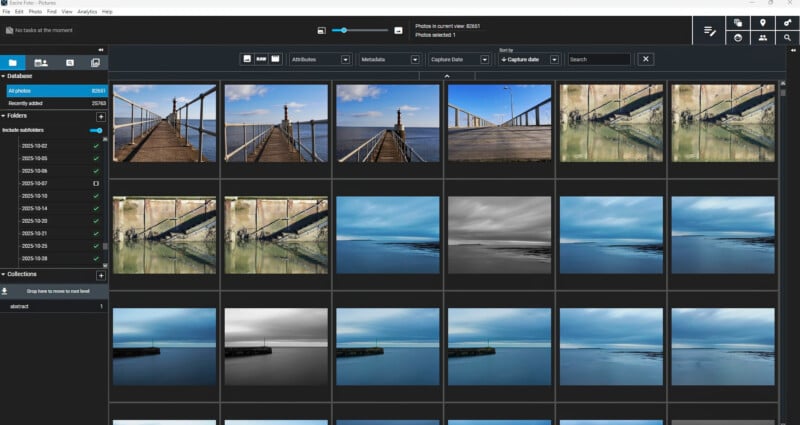
We can quickly acquire tens of thousands of photos. Therefore, managing them effectively is essential. Equally, we are becoming more demanding of our development and editing software. Recently, the most effective way of managing our workflow has changed dramatically, making our lives easier.
The Limitations of Adobe Photography Plan
There is nothing wrong with Lightroom Classic and Photoshop. The former does a great job of cataloguing photos, and the latter does the same for editing. Furthermore, Lightroom, along with Adobe Camera Raw (ACR), gives decent results for developing RAW files. Bridge is a fast Browser. Therefore, it’s perfectly feasible to go with the norm and sign up with the Adobe Photography Plan.
However, those programs have grown organically. Their user interfaces are designed around the same basic foundations developed in 2007 for Lightroom and in 1990 for Photoshop. In the meantime, dozens of alternative approaches have emerged that may suit some photographers better than the legacy route into cataloguing, developing, and editing photos.
Good though they are, Adobe’s offerings are not the best option for every photographer. For example, keywording large numbers of files with Lightroom is still the same laborious process it always was. The program can also become slow when dealing with many photos. Then learning Photoshop is a painful climb; its complexity can be too daunting for some.
Moreover, although still decent, the results from its RAW processing do not quite match those of other programs. It’s not bad, giving acceptable results. But for photographers who want the very highest standard results, there are alternatives.
So, let’s look at some other approaches.
Access Your Photos More Effectively
Do you have the time to create and maintain an accurate library? Do you add keywords, color tags, and star ratings fastidiously? Then, can you keep on top of culling your photos and enjoy that process? If you answer yes to all that, then Lightroom is perfect for you.
However, I know I am not the only photographer who’s rubbish at all that. Time is short, and I have other priorities. I regularly had memory cards with 2,500 or more photos that I took over a couple of days at different locations. Some of the images were of wildlife, and others street photography. Meanwhile, more still were landscapes.
Did I have the patience to import multiple images into Lightroom and apply keywords to those groups? No. I was, and still am, far too busy to go through them afterwards to tag and rate them. I also found deciding which to keep and which to reject monotonous. Therefore, although I said I would get around to cataloguing them later. I never did!
I paid the consequences for that. When I wanted to find an image of a subject, which I often do to sell prints or illustrate articles I write, because I have not keyworded and rated them properly, I struggled to find the photos I wanted.
If some of that sounds familiar to you, then you might welcome a completely different approach to managing your photo library.
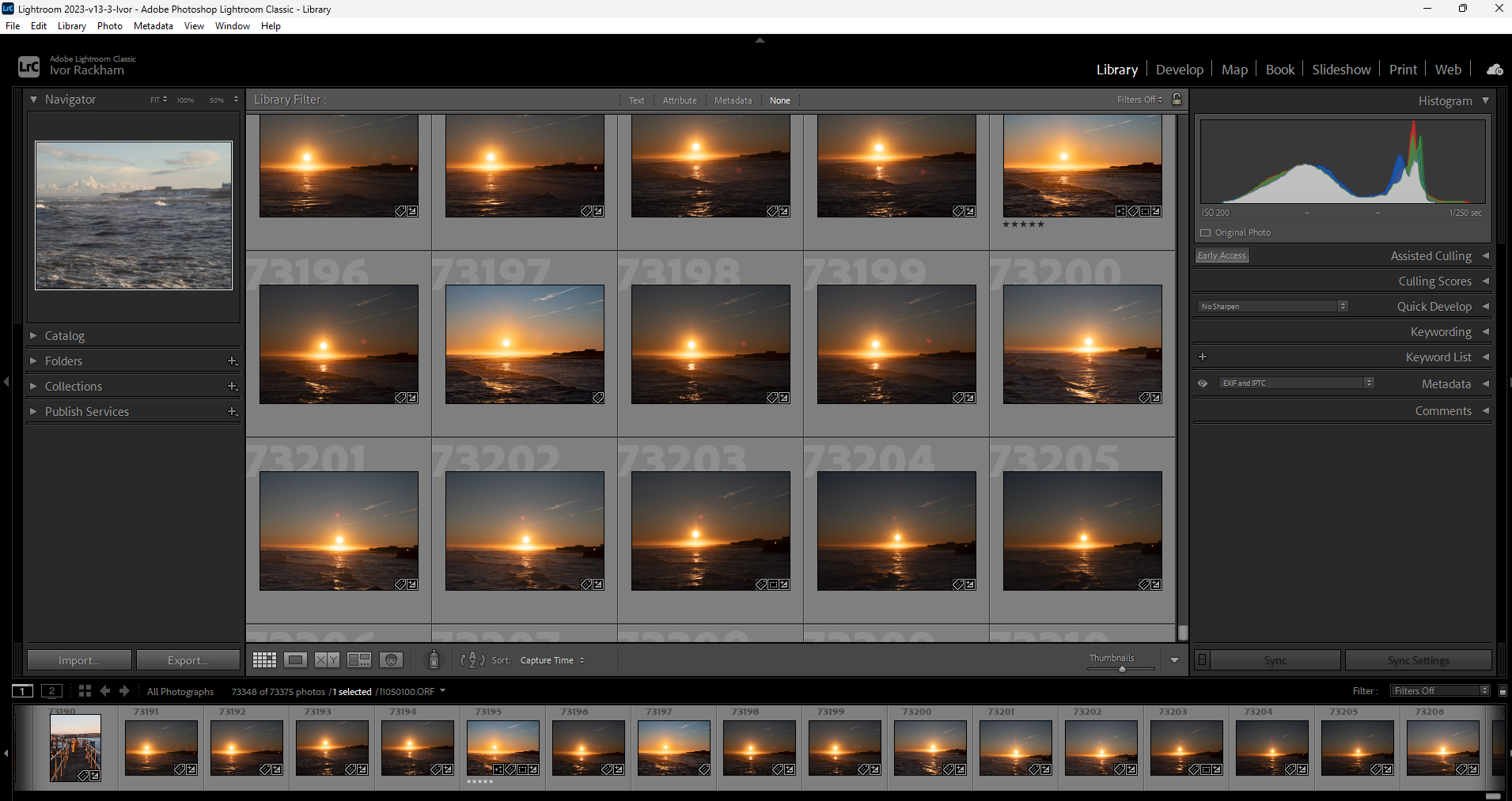 My badly managed Lightroom Library
Forget Typing Keywords
Imagine being able to type a description of the photo you are looking for into a search box. You could try “sunrise over an island”, “two people on a beach”, “woman”, “border collie”, or “heron”, and the photos that fall within any of those criteria would appear as requested, whether they were keyworded or not. That would happen because the software recognised the subject in the photo.
Photo shoots of events result in me taking multiple copies of the same group shot, just to ensure I get one frame where no one is blinking. Sorting through those takes a long time. It would be great if the software could just reject the photos where people’s eyes are shut.
What if you could tag one photo of somebody, and the software would identify them in other images, even from years ago when they were a child?
All those things are now possible. Consequently, I recently transferred to using one such program: Excire Photo. It offers a wholly different and far more effective approach to the traditional methods of categorising and searching for photos.
After importing my existing folders into the program, it analysed them and automatically added keywords. Previously embedded keywords in the files were not overwritten.
On top of that, Excire also finds subjects whether they have been tagged or not. If I typed ” Puffin ” into a search box, it would find all the pictures of that bird. Or, if I typed “Street scene”, all my street photography would appear. More extraordinarily, it would differentiate between bovines and ungulates. The latter included deer in the search results.
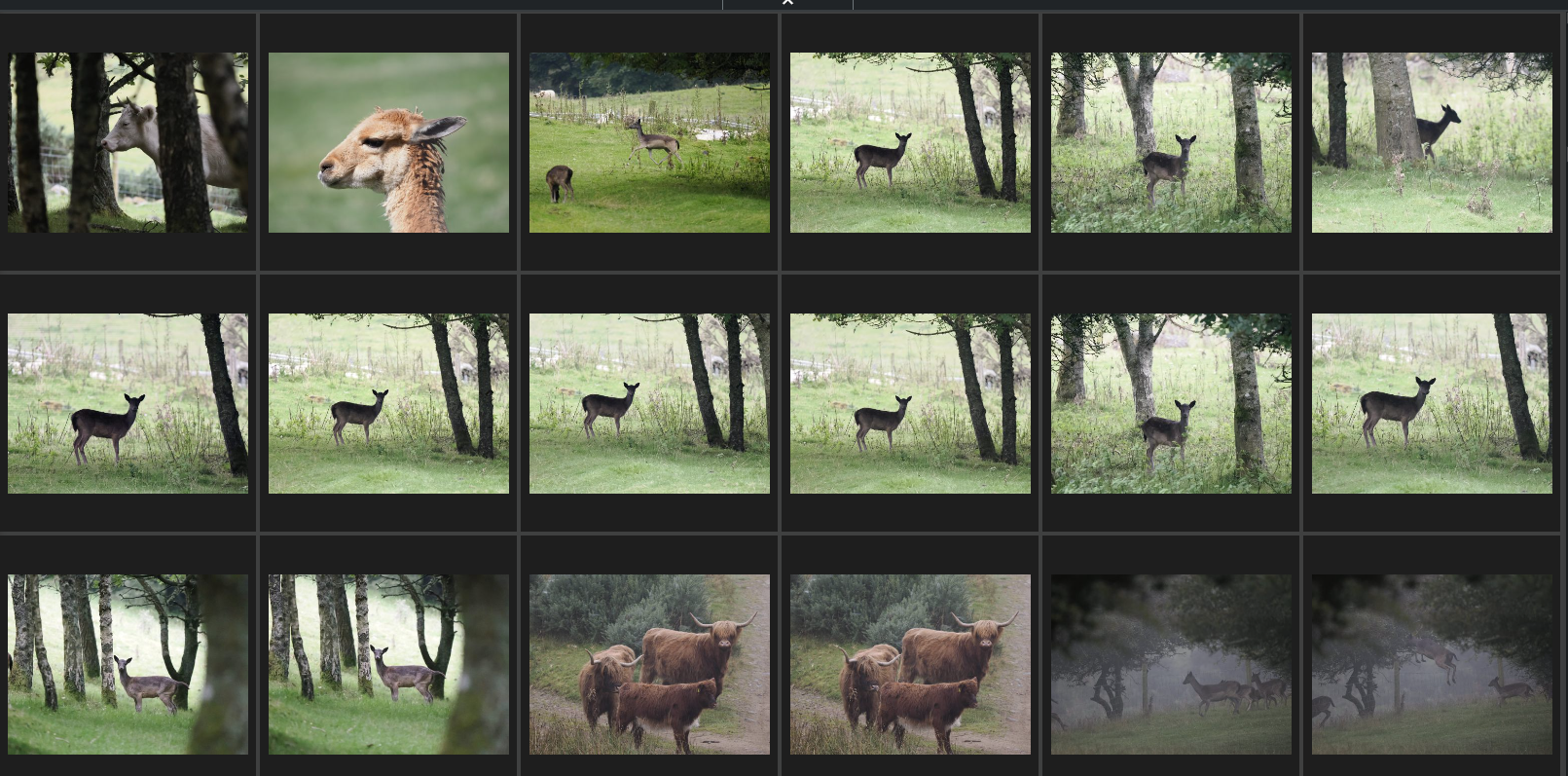 Some of the results searching for “Ungulates” using Excire.
People Searches
Similar to Lightroom but much faster, I can tag my adult son, and it immediately and accurately finds photos of him. However, Excire found more results, even including images of when he was a boy. I then tagged a picture of me wearing glasses from when I had grown a beard worthy of Santa Claus. Despite my “chinsulation” (I grew it to keep me warm during a winter expedition to Finland), it found the photos where I was clean-shaven and spectacle-less.
I then searched through the hundreds of historical photos I have scanned of my ancestors, dating back to the mid-Victorian era. It could match faces in different photos. Moreover, it does this much faster than Lightroom Classic’s face-finding function.
As well as organizing photos chronologically, it can automatically sort photos into people-specific groups and then create collections.
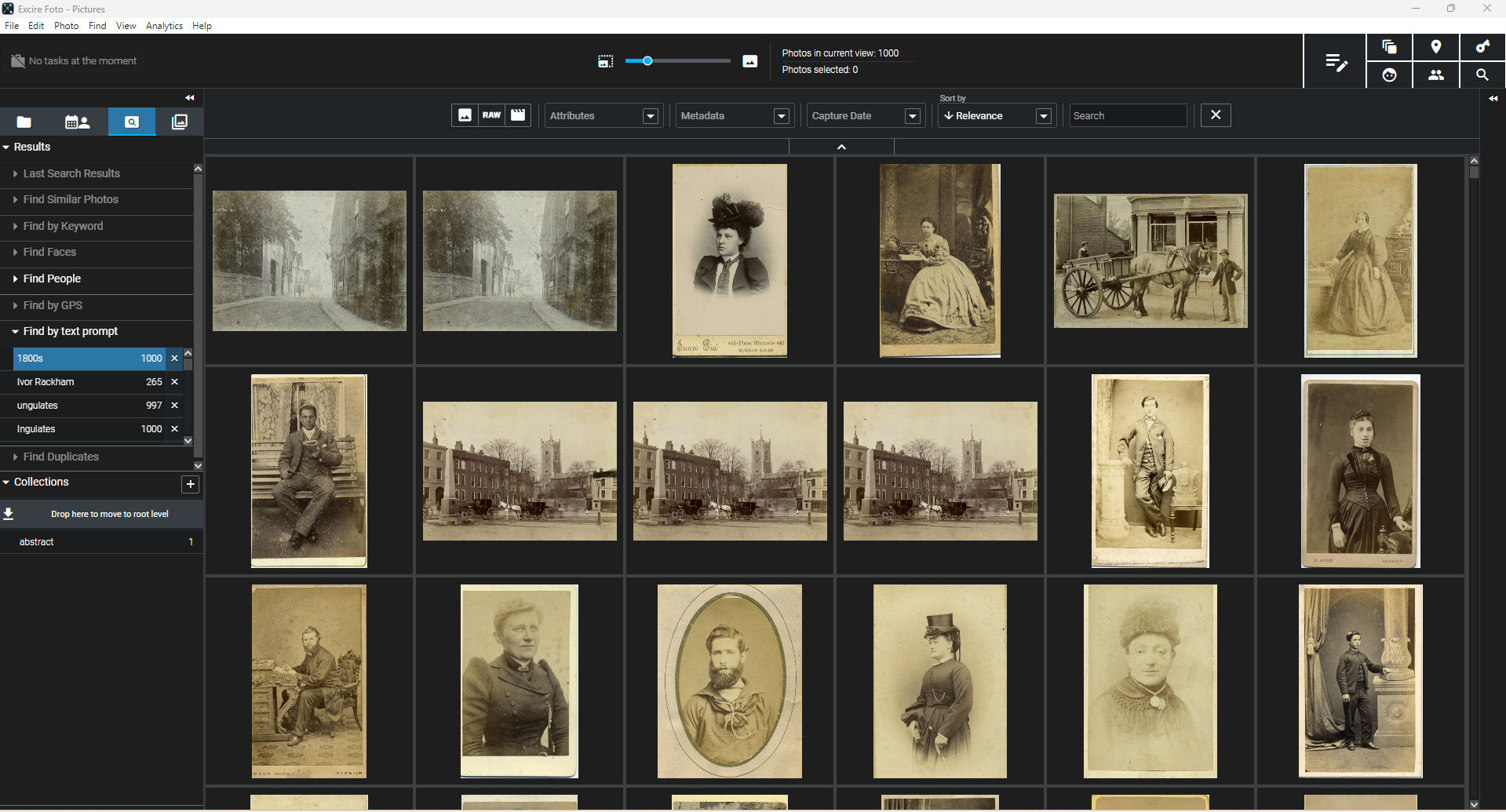
Searching my historical family photos by using “1800s” as a search term.
Culling Photos
For culling, there are different options available, including one for weddings. Excire Photo will automatically flag for deletion photos that it identifies as being unsuitable. For example, it will filter out blurred images and those with people whose eyes are closed. You can also choose the criteria you want to apply for culling. For example, I take a lot of abstract images showing blurred movement, so I can exclude blurring from the search. Furthermore, when I shot a sequence of photos, it could grade them based on their aesthetic appeal, helping me to choose the best.
Excire isn’t the only software that does some of these functions. There are other programs out there, too, that have some of the same features. Narrative Select, ImagenAI, and Aftershoot are all worth looking at. ON1 Photo RAW also offers pretty good automated keywording, along with all the other editing and developing features in its arsenal.
If you are interested in breaking away from Lightroom, then experimenting with a free trial of these programs is worth investigating.
Develop RAW Files to a Higher Standard
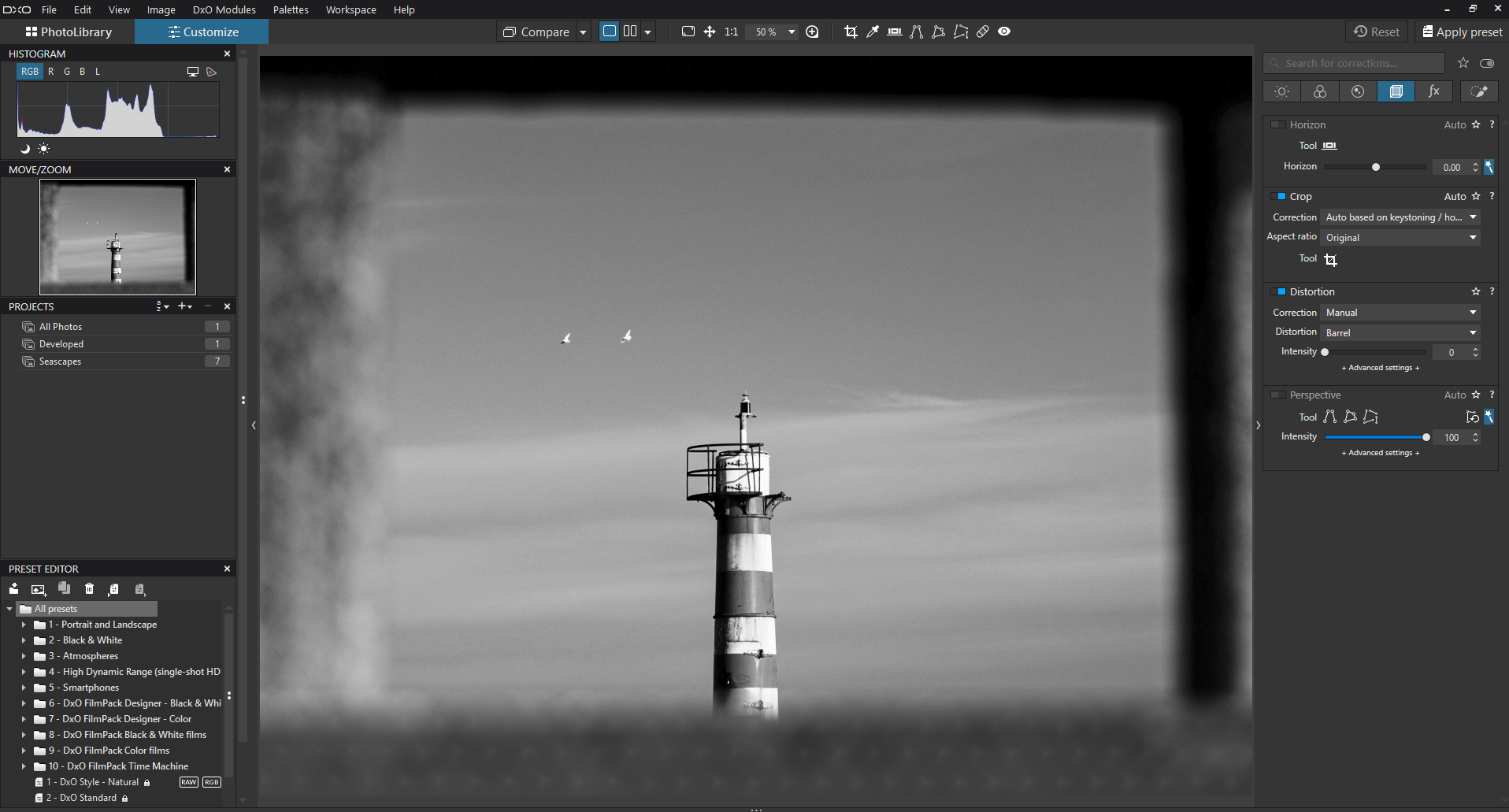
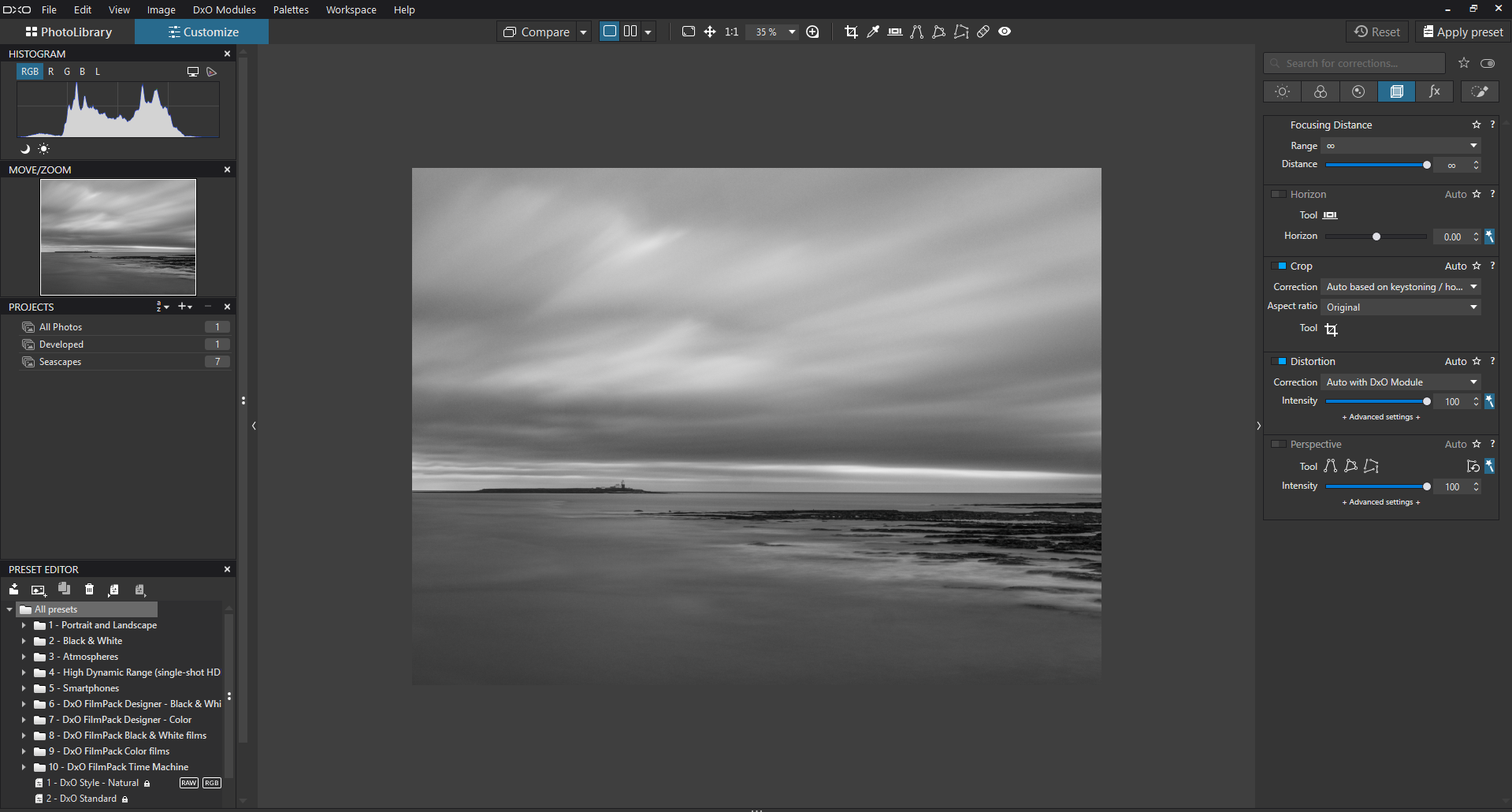 Developing a photo in PhotoLab 9
As I mentioned earlier, Adobe’s RAW development tools are good. I would go so far as to say they are far better than some programs out there. I used Lightroom Classic for years and got great results. However, after trying other apps, I discovered that others could do even better.
It was a couple of years ago now that I did the extensive tests of the different RAW development programs. All those programs have moved on, and sensor technology has changed, too. At that time, the various programs performed better with some camera brands than others. For example, I found that Capture One gave better results in RAW development than Lightroom across the range of cameras. However, more than any other tool, I found DxO PhotoLab delivered the best RAW conversions.
PhotoLab is unmatched in its lens and sensor corrections, noise reduction, and overall image quality. In addition to its unique U Point Technology, a local adjustment system that lets you apply edits selectively without complex manual masking, it now offers AI-powered masking. That seems to have become ever more accurate with each minor update.
I must reiterate that it doesn’t mean Lightroom or any other professional-grade program is bad. However, if the best possible results are essential to you, then PhotoLab is a route well worth exploring.
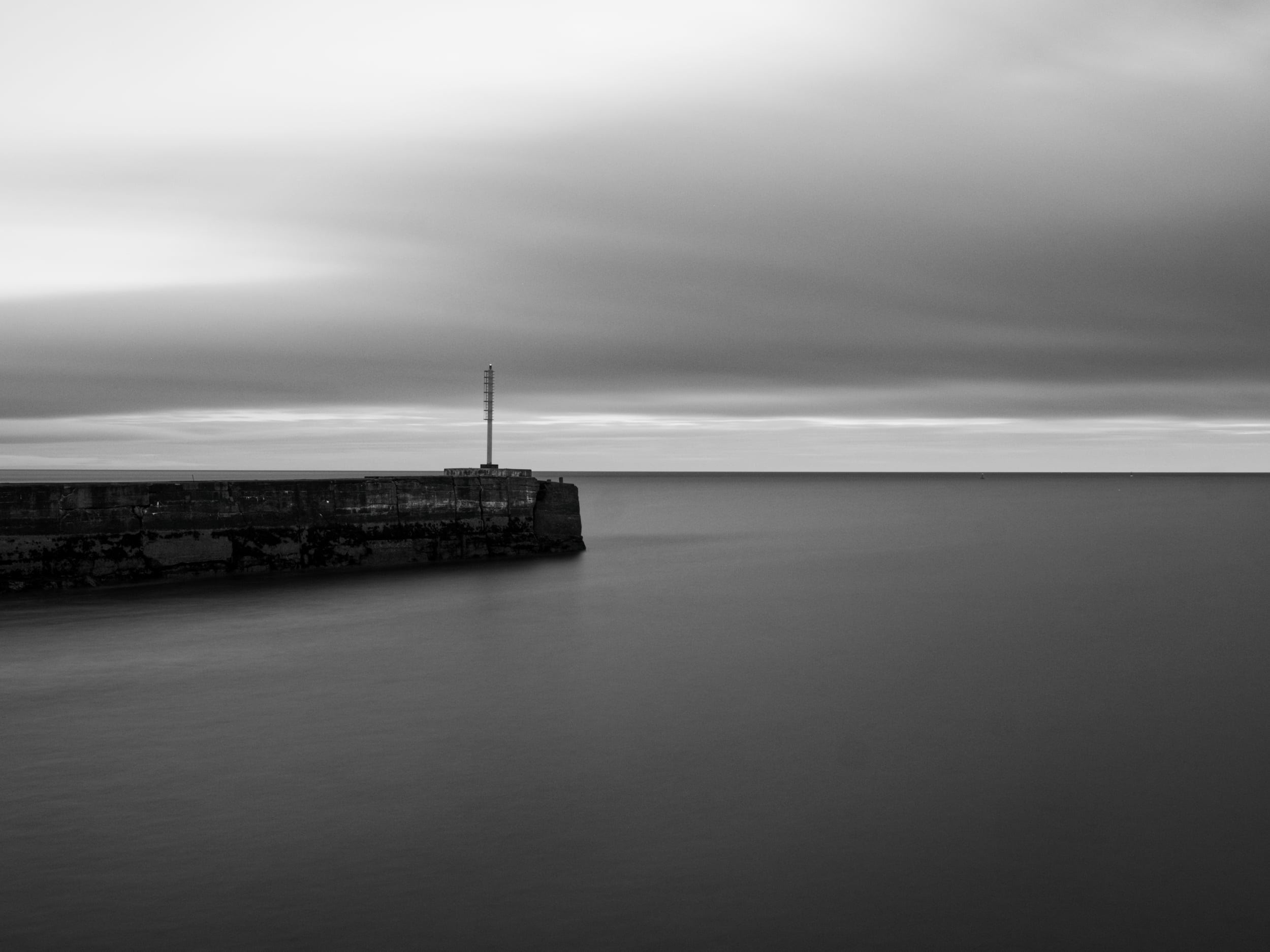 Searching for the word Beacon in Excire was quick, and opening this image in DxO PhotoLab, developing it, and printing it were easy.
Editing
Although there is some overlap, I distinguish between editing and RAW development. For me, RAW converters change how RAW files are previewed. Tools that can change the actual pixels in a photo file are editors.
Photoshop is probably the most widely used and comprehensive editing tool available. It’s great if you know how to use it. However, its complexity means it is cluttered with many tools that are redundant for most photographers. It also takes a lot of learning. Nevertheless, one can achieve great results with it.
Of course, there are some excellent alternatives out there. As I mentioned earlier, ON1 Photo RAW has some fabulous editing tools that are far more straightforward and intuitive to learn from scratch. Better still, they give the editor, called Effects, away for free. Always inexpensive, Affinity Photo is also free and has a splendid array of editing tools. Now owned by Canva, their combined tools offer a strong competitor to Adobe Creative Cloud, especially for those avoiding subscriptions.
DxO also has the Nik Suite, which uses an entirely different approach to Editing and delivers tremendous results.
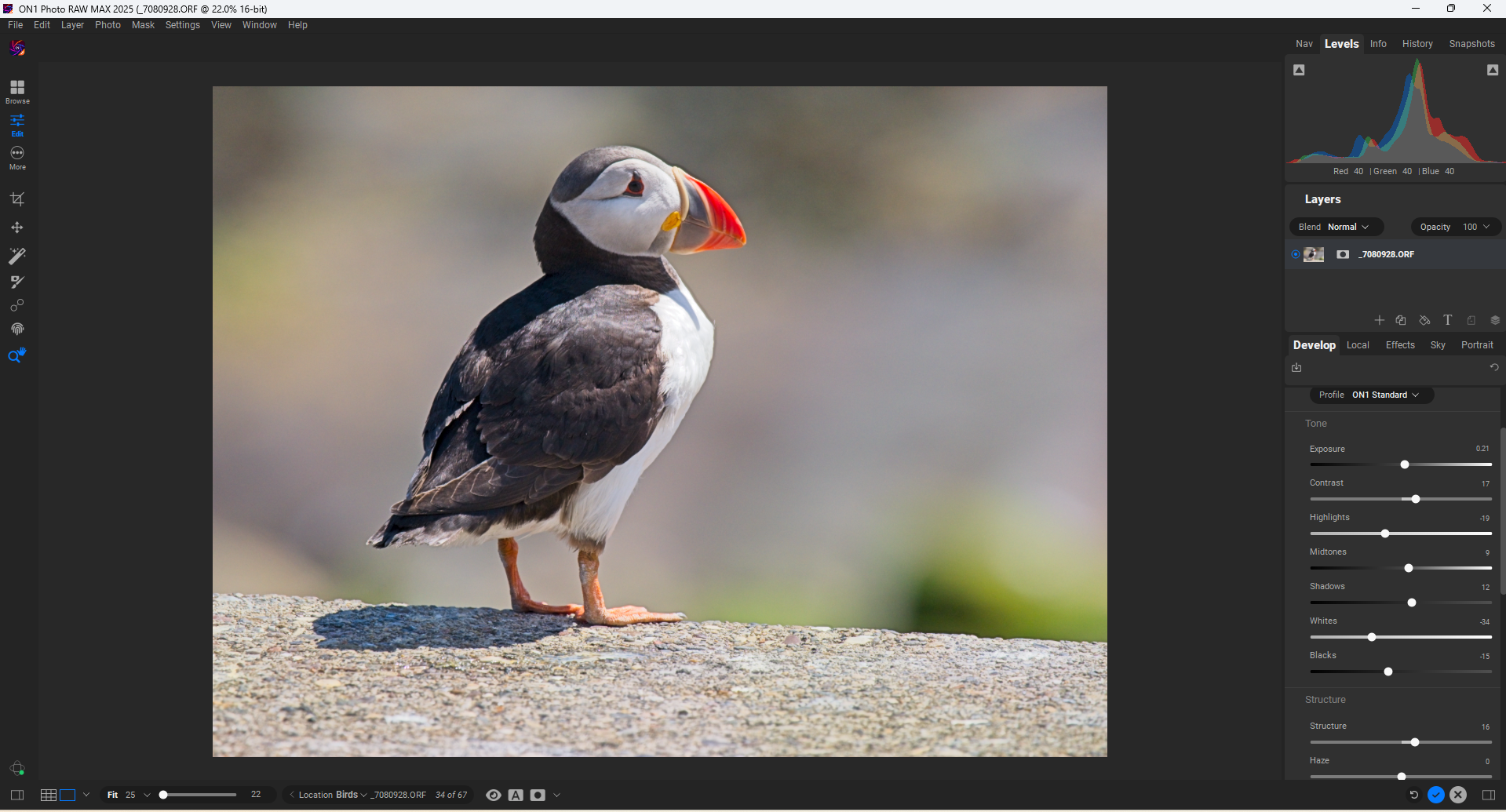 ON1 Photo RAW offers unique, user-friendly tools for developing and editing photos.
In Conclusion
As I mentioned at the start, there are many methods of cataloging, developing, and editing photos.
Some photographers have time restraints, so handing the library function over to an AI-based tool may make sense. Other photographers may want user-friendly, intuitive software. Meanwhile, some may find that the slight difference in image quality is all-important. Others are limited by their budgets, so I should mention that Excire, DxO’s PhotoLab, Nik Collection, and ON1 Photo RAW are all available with a perpetual license, i.e., you pay once and can use them indefinitely.
Those programs I have mentioned here are by no means the only options available. Whatever you choose, taking a different approach from the majority can open new creative possibilities. It is always worth exploring the alternatives and discovering what they can do.





 English (US) ·