.png)
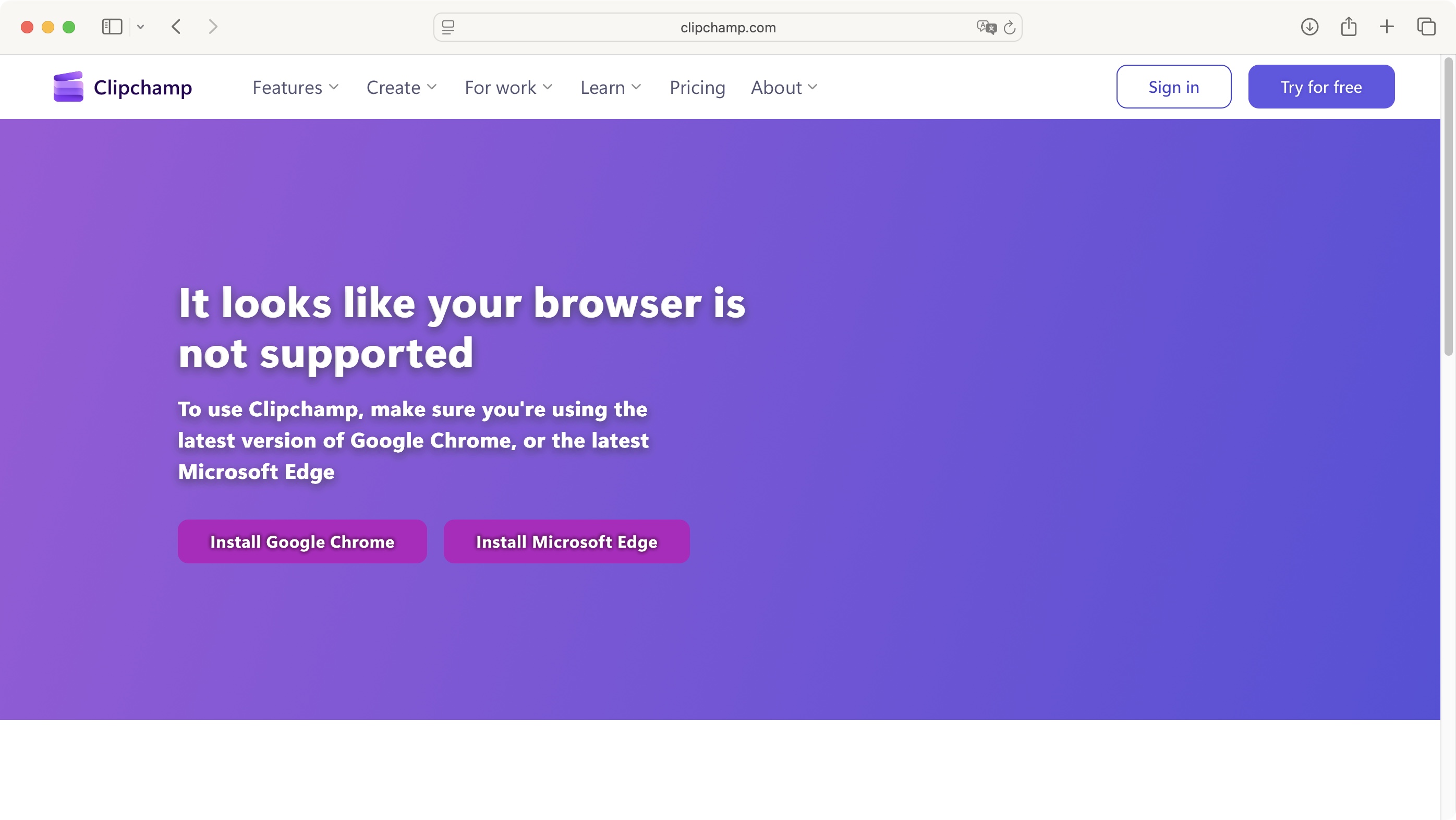
The Microsoft-owned Clipchamp is distinct from most video editors, since the main draw here is that you can edit videos in your browser (provided that browser is either Chrome or Edge).
There’s an obvious advantage to that - as long as you’re logged in to your account, you can work from any computer. There's no need to check you have top-end computer specs and you don’t need to install any additional software.
Clipchamp: Pricing & plans
- Generous free option with no watermarks
- Premium subscription with Microsoft 365
Being able to edit online is one thing, being restricted to only a couple of browsers is another. I’m not a fan of being forced to work with a specific browser. Personally, I like Firefox and Safari, but Clipchamp is only compatible with Microsoft Edge and Google Chrome. If you already use these browsers, great, but if you don’t, you’ll have to decide from the outset if that restriction will put you off using this video editor.
As for the price, Clipchamp comes in two flavours: ‘Free’ and ‘Premium'.
‘Free’ is surprisingly generous, letting you work on projects up to 1080p, have access to what they call ‘AI editing tools’ for audio and video, grant you the ability to record your computer’s screen, webcam, and audio, and all without any watermark anywhere, which is pretty cool.
As for ‘Premium’, its projects can be up to 4K, and you gain access to premium stock assets, filters and effects (‘Free’ only has a basic assortment of those).
Unfortunately, though, you can't get a Premium subscription as a standalone. Instead, Clipchamp is bundled with Microsoft Office 365, so if you’re not one for subscribing to business software, you’ll have to decide if Clipchamp Premium is worth getting for between $100 and $130 a year - which is quite hefty for an online video editor - or whether a tool like Canva Video might be the better pick. On the bright side, if you already subscribe to Office, then you can have fun with Premium right now.
Clipchamp: Getting started
- You absolutely need a Microsoft login for personal accounts
You can choose to use your email address, or log in through your Google or Microsoft account… except if you choose to work on personal projects, Clipchamp will then inform you only Microsoft accounts are able to do that.
And that’s after giving your email address, created a password, and clicked on many, many emails and buttons,
Making it clear what the state of play is from the get-go would’ve saved me a lot of time. It doesn’t really endear you to the service you’re about to explore.
However, I decided to put that little hiccup - something that could easily be fixed with a few lines of text at the login page - to the side, and set off exploring the online service.
Clipchamp: Interface & experience
- Impressive considering it's browser-based
- Good interface with easy to use tools
- Experience marred by tiny preview section and lots of buffering
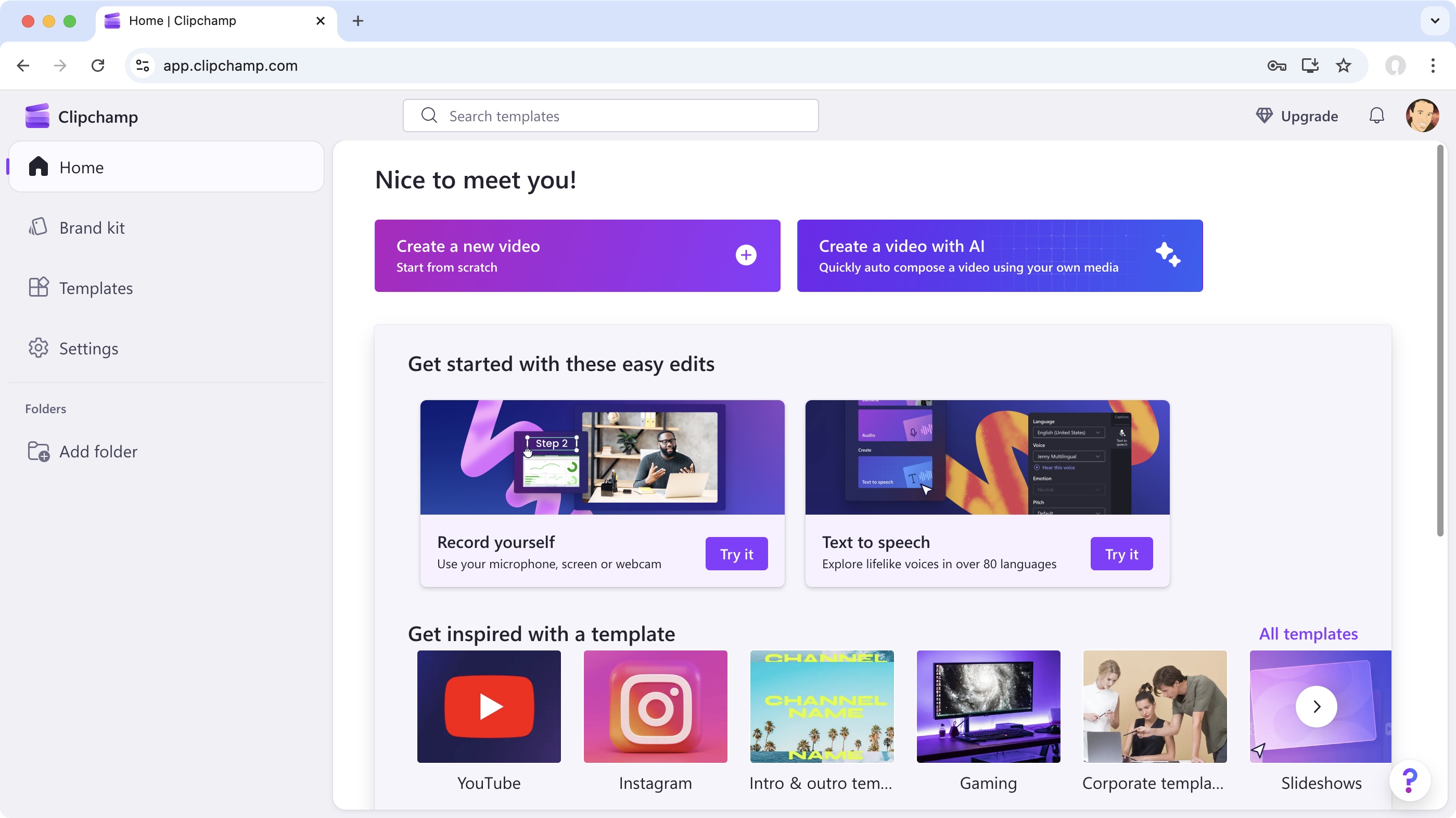
The home page looks fine. You’ve got a sidebar on the left to gain access to your settings and ready-made templates, among others, while the bulk of the page is devoted to tips and tricks to encourage you to try new features (I was offered recording from a webcam, and using digital voices to turn your text into speech). You’ll also see a few featured templates, a button to edit by yourself, and another with the help of AI, and at the bottom, all your previous projects.
Nothing new here really in terms of design and layout, but it’s simple and clear, which helps you get to where you wish to go.
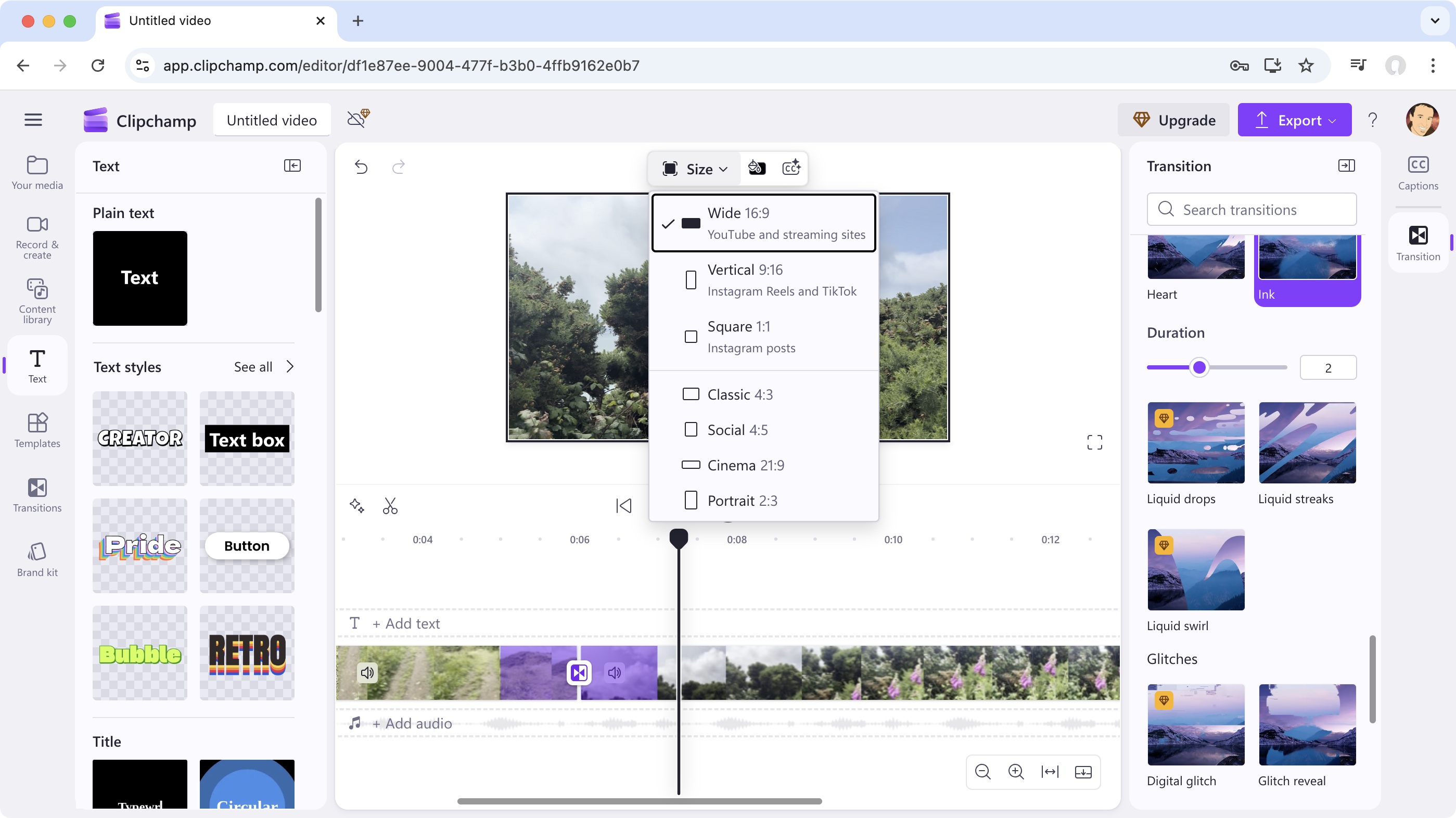
I thought I’d try out the manual editing first, as that’s my usual bread and butter… And I must say, it works really well. To the left is a sidebar containing all available tools. From there, you have access to any media you uploaded to the service, a library of stock assets, text tools and transitions, templates (again), and a section dedicated to recording media. This includes webcam, a connected camera, your desktop, or a microphone (all of which worked really well). This is also another place where the ‘text to speech’ option can be accessed.
All well and good.
When it comes to editing, it’s all about dragging. Drag a clip from your library to the timeline to add it to your project. Repeat the process, to build up your edit. Drag a clip’s edges to resize it, drag an entire clip to move it around; select an item in the timeline for its changeable parameters to appear in a sidebar to the right. It’s all pretty intuitive and standard fare.
The one thing that annoyed me is how small the preview section is. This is generally the part of the interface that needs to be as big as possible, so you can see what you’re working on. Here, it’s tiny.
Worse still, dragging the playhead along the timeline doesn’t update what you see in that preview section, so you can’t quickly scroll to another part of your edit and carry on working: you have to wait for the buffering to end.
That’s an obvious downside to working online, but it’s also a frustrating one if you’re used to working fast. If you’re a casual editor, you might be fine with that though.
Clipchamp: Recording
- All options work well
- Choose your text-to-speech narrator wisely
You get four recording options in Clipchamp: Camera, Screen, Camera & Screen, and text-to-speech. These work exactly as you’d expect - grant the app access to your mic and webcam, select which window, tab, or desktop to record, hit Share.
It’s not a bad shout if you need a no-fuss one of the best free screen recorders for no-fuss, no-hassle set-up and use. It's also useful for recording piece-to-camera videos and webinars.
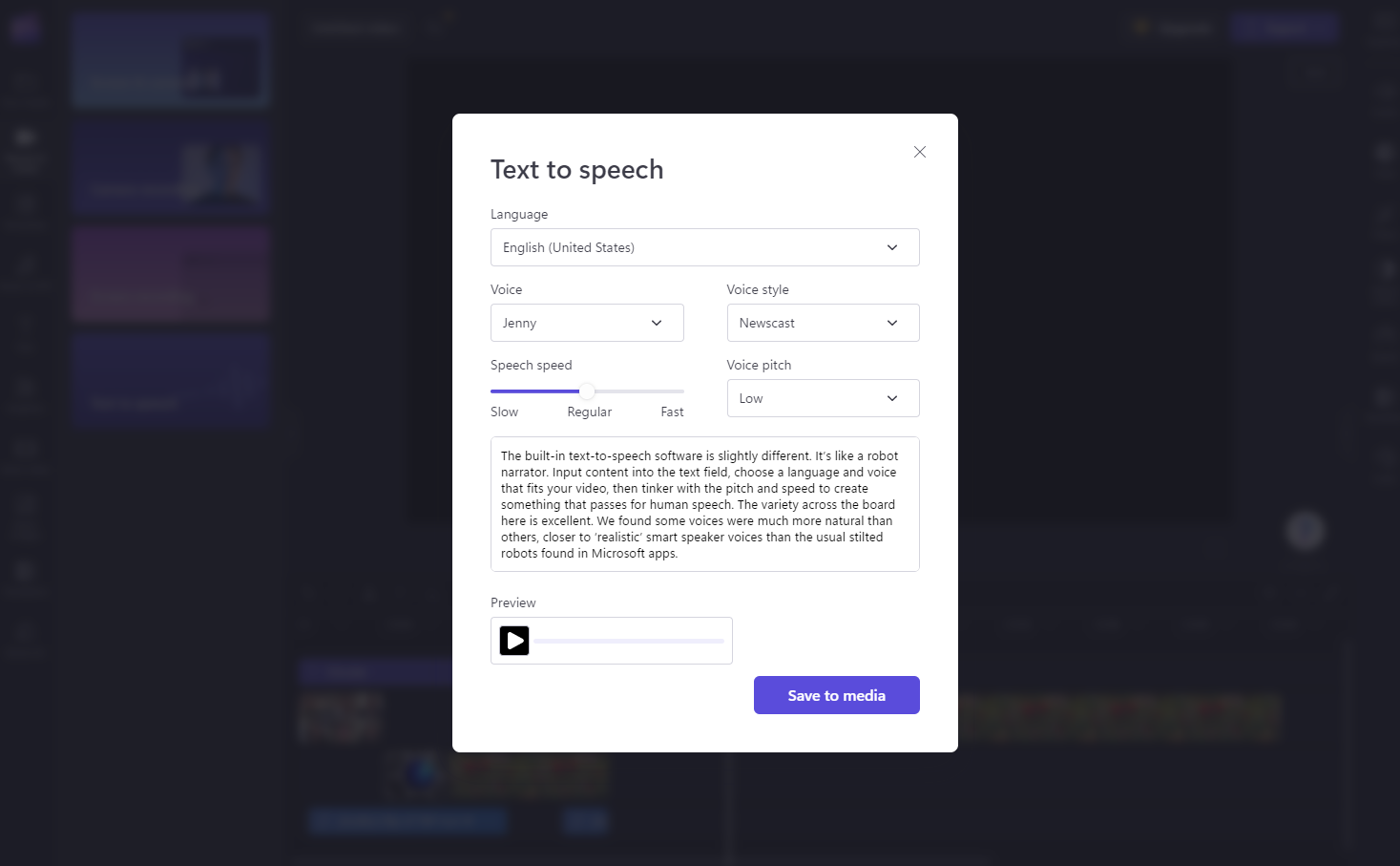
The built-in text-to-speech software is slightly different. It’s like a robot narrator. Input content into the text field, choose a language and voice that fits your video, then tinker with the pitch and speed to create something that passes for human speech.
The variety across the board here is excellent. However, some voices were much more natural than others, closer to ‘realistic’ smart speaker voices than the usual stilted robots found in Microsoft apps. Save the sound clip and you can drag it onto your timeline like any other media.
Clipchamp: AI editing
- Not truly AI
- Automatic algorithms, and not very clever ones at that
Now, might AI overcome some of the buffering I experienced? After all, if the algorithms do the work for you, it should be a much easier affair.
To be honest, this was one of the most disappointing aspects of Clipchamp. I can live with a bit of buffering. But the claims of AI editing are laughable.
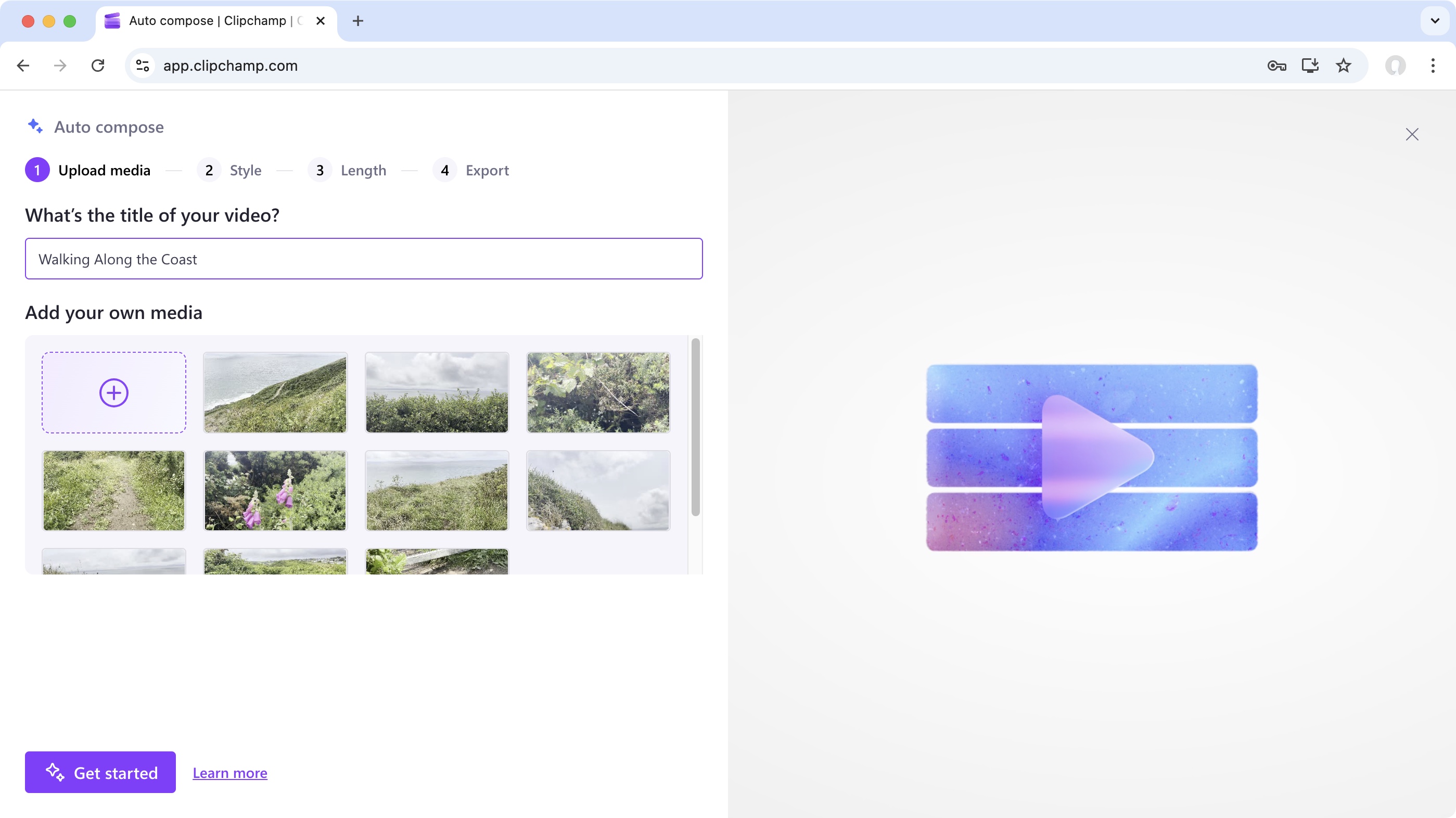
First things first, I uploaded some footage - and that process is absolutely fine. Then I had to like or dislike a bunch of themes, or select the option ‘choose for me’.
When it comes to orientation, it’s either landscape or portrait (the more numerous options I found when editing manually weren't present this time round). There is an option to choose from a handful of songs and fonts, or just accept the default selection that’s been presented, and then export.
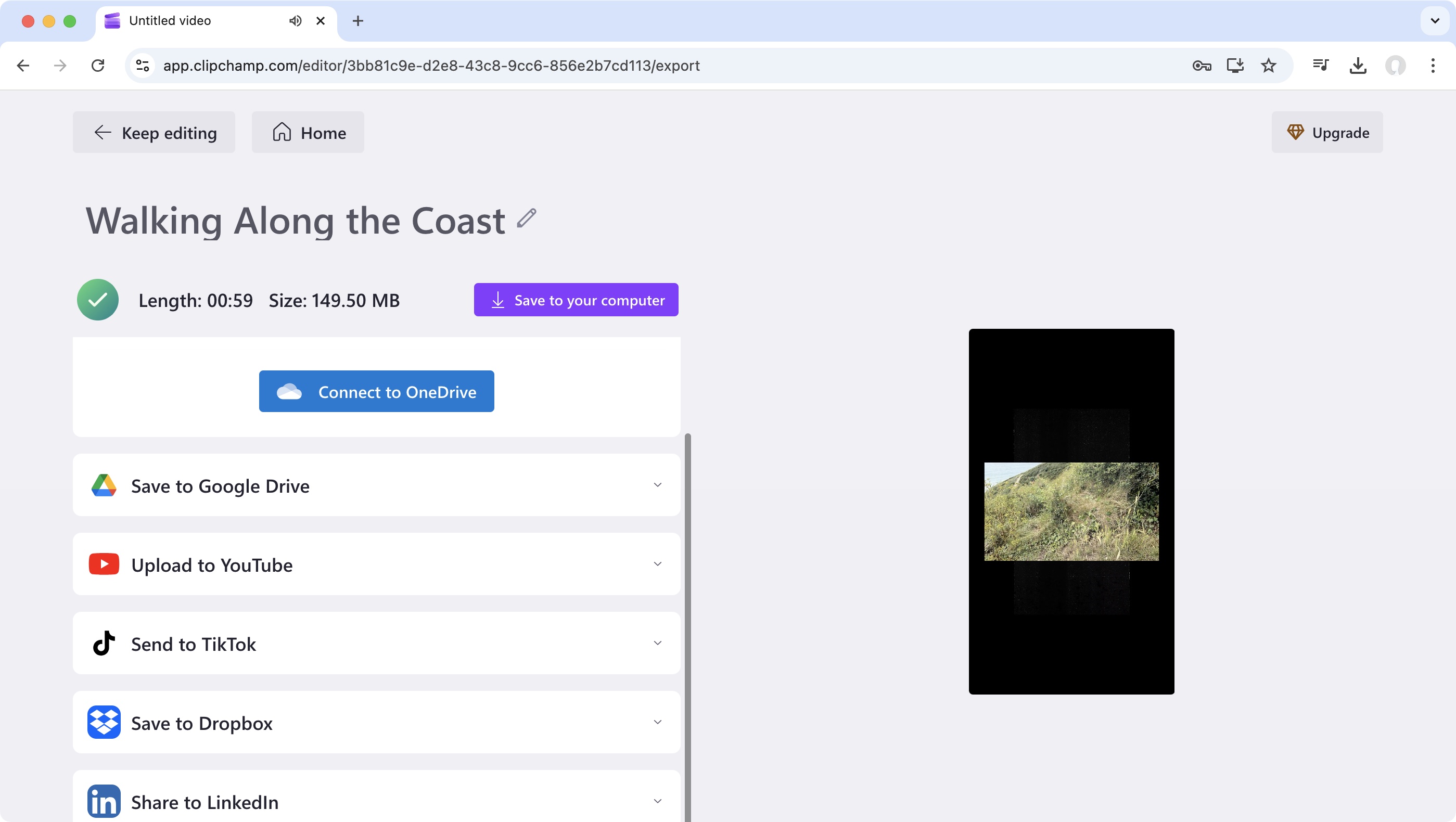
As the algorithm does its thing, I was offered various ways to save the project: save to the desktop, upload it to an online storage service such as OneDrive, Google Drive or Dropbox, or to social media sites such as YouTube, TikTok or LinkedIn.
Then came the big reveal.
I have to say, I wasn’t impressed with the output. Sure everything was edited for me, but the choices were anaemic.
I uploaded widescreen shots and requested a vertical video suitable for social media. The algorithm didn’t crop my footage. It just presented it with massive black bars top and bottom. This was not what I was expecting.
The editing was also unimpressive. Oh and the preview section during export could also be bigger (what is it with Clipchamp and tiny preview sections?)
I tried multiple times, and noticed the edit seems to follow the order the clips were in, and it didn’t even edit to the beat of its chosen song. I mean, really, that should be a basic feature for an AI tool.
If, like me, you’re not happy with the results, you can always ‘Keep Editing’, i.e., take the work already done by the machine, and refine it to your liking in the manual editing section. That could definitely save some time. Frankly, I’d bin the whole thing and start properly from scratch. But maybe that’s just me.
Should I buy Clipchamp?
Buy it if…
You’re looking for an way to edit online, with some simple tools that are well implemented, and best of all, the free tier doesn’t watermark your output!
Don’t buy it if…
You’re not a fan of having to wait for the interface to catch up with you, you’d appreciate a bigger preview section, and are far from impressed by the lamentable AI feature.
For more editors, we've tested and reviewed the best free video editing software and the best video editing apps.






 English (US) ·